Advanced filters are only on Plus and Pro. Plus filters by “Minimum coins” and highlights large boxes; Pro unlocks the rest: “Minimum ratio”, box type, box status, bag levels and the low-viewer filter. This guide explains each field, which plan has it, with real screenshots.
✓ Practical steps✓ Clear data definitions✓ You participate in TikTok
01
Opening Filters for Chests or Bags
On the LIVE page, choose boxes or bags first, then click “Advanced filters”. The filter panel opens for the active type, so box and bag filters are stored separately without losing settings when switching.
Filters are saved in this browser. Switching browsers or clearing site data requires setting them up again.
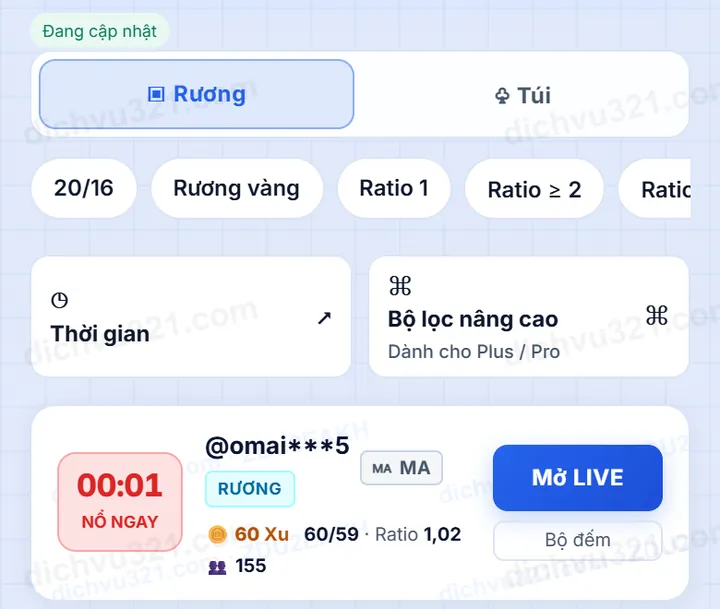
Choose boxes or bags, then click “Advanced filters” or “Time”.
02
Box Filters: Which Field Belongs to Which Plan
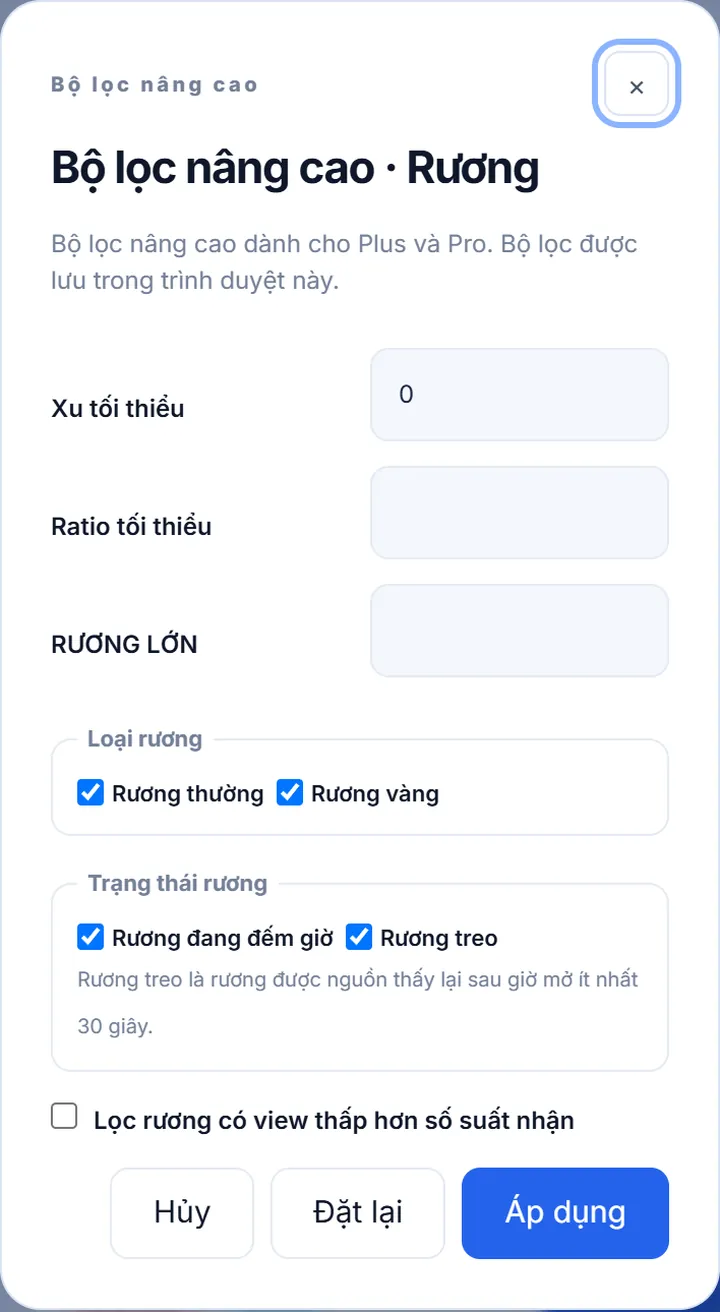
“Minimum coins” (Plus, Pro): only displays boxes with total coins at or above this number. Set to 0 for no limit.
LARGE BOX (Plus, Pro): enter a coin threshold; boxes exceeding it are highlighted so you spot them instantly.
“Minimum ratio” (Pro): only displays boxes with a ratio (total coins divided by winning slots) at or above this level.
“Box type” (Pro): normal boxes and gold boxes.
“Box status” (Pro): “Counting down” and “Hung boxes” (boxes past their opening time that nobody has opened).
“Filter boxes with fewer viewers than winning slots” (Pro): keeps only boxes with fewer viewers than winning slots.
Advanced filters · Chests: set coins, ratio, LARGE BOX threshold, box type, and box status.
03
Bag Filters: Coins, Ratio, and Level
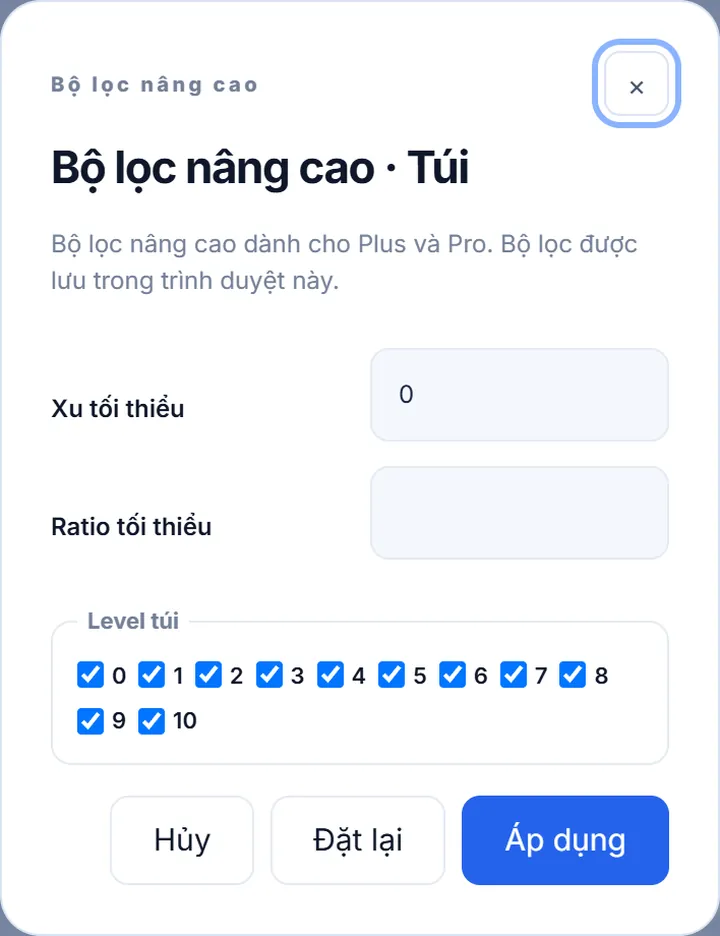
For bags, Plus has “Minimum coins”. Pro adds “Minimum ratio” and bag level checkboxes from 0 to 10; deselect levels you do not care about to streamline the list. A bag ratio is total coins divided by winning slots, or by participants when the bag has no slots.
Bag level is information about the bag in TikTok. Choosing levels on the website only filters the list and does not grant participation; read the real conditions inside the room.
Advanced filters · Bags: select levels 0–10 along with minimum coins and ratio.
04
Minimum Remaining Time
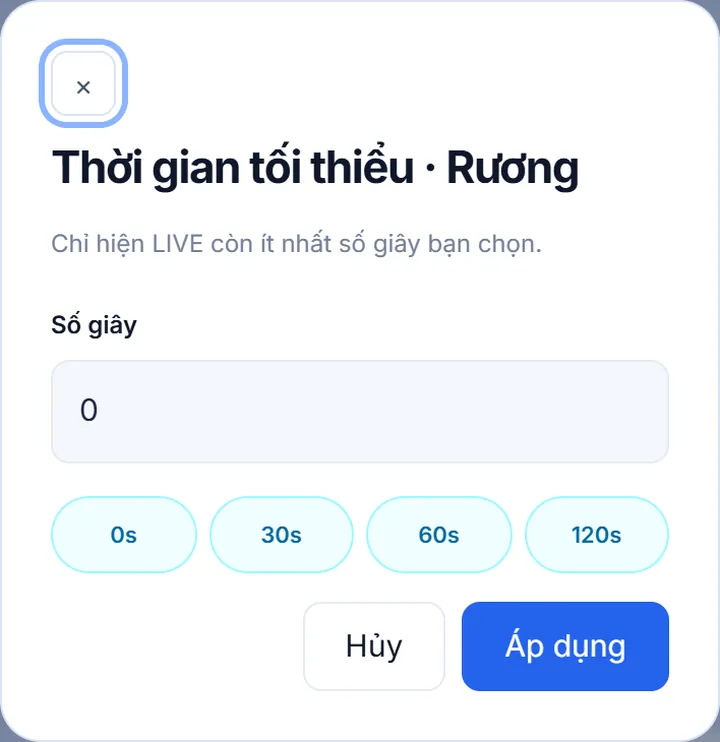
Click “Time” to only display LIVE rooms with at least your chosen number of seconds left: type a number or tap quick buttons 0s, 30s, 60s, or 120s. Setting around 30–60 seconds gives you time to open TikTok and join the room.
Plus and Pro edit it directly and keep it in the browser. Free would need a rewarded ad for each change, and rewarded ads are not available on the website yet, so Free cannot edit it on the web for now; a Free time setting only applies to the current tab and resets to 0 upon reload.
Minimum remaining time: only show LIVE rooms with at least the selected number of seconds left.
05
Tips for Configuring Your Filters
Start broad (Minimum coins 0, Minimum ratio blank), then raise conditions gradually until the list is easy to track.
Targeting high-coin boxes: set “Minimum coins” and a LARGE BOX threshold; on Pro, keep both normal and gold boxes enabled.
Targeting boxes with few viewers per slot (Pro): enable “Filter boxes with fewer viewers than winning slots”. This is data only and does not guarantee coins.
An empty list is not a bug: it means no active LIVE room currently meets your filters. Relax conditions or check back shortly.
Click “Reset” to restore default settings whenever you are unsure what was changed.
06
Custom Tab and Built-in Tabs
In addition to the filter panel, tabs at the top of the list offer preset filters. Boxes: “Ratio 1” (Free); “20/16”, “Gold boxes”, “Ratio ≥ 2”, “Ratio ≥ 4”, “Hung boxes” (Plus); “Lucky picks” (Pro). Bags: “Level 2–10” (Free); “Level 1”, “Level 0” (Plus).
Pro adds a “Custom” tab for boxes and one for bags, applying your exact advanced filters. See each plan's features in the Free, Plus, and Pro comparison guide.