
Watch: buy a key and get it in about a minute
This 1-minute video shows the whole USDT purchase on a real phone: choose a plan, send USDT, and the key is issued and applied automatically. The wallet address and key are blurred.
This guide has a video and step-by-step screenshots: choose a plan, pay by MB bank transfer or USDT, get your key automatically and turn the plan on from the LIVE page. Everything happens on the website, and LiveMira never asks for your TikTok password.
This 1-minute video shows the whole USDT purchase on a real phone: choose a plan, send USDT, and the key is issued and applied automatically. The wallet address and key are blurred.
Plus suits people who want more flexible filters and can accept banner ads. Pro is for people who want to focus on LIVE: it includes the full set of advanced filters, just one small banner and additional custom filter options.
Reference prices: Plus costs 20,000 coins per day or 500,000 coins for 30 days, and Pro costs 25,000 coins per day or 700,000 coins for 30 days. For other durations, the amount you transfer decides how much time you receive, so you can pay the amount that matches the time you want. Always check the latest prices in the PLANS tab before paying.
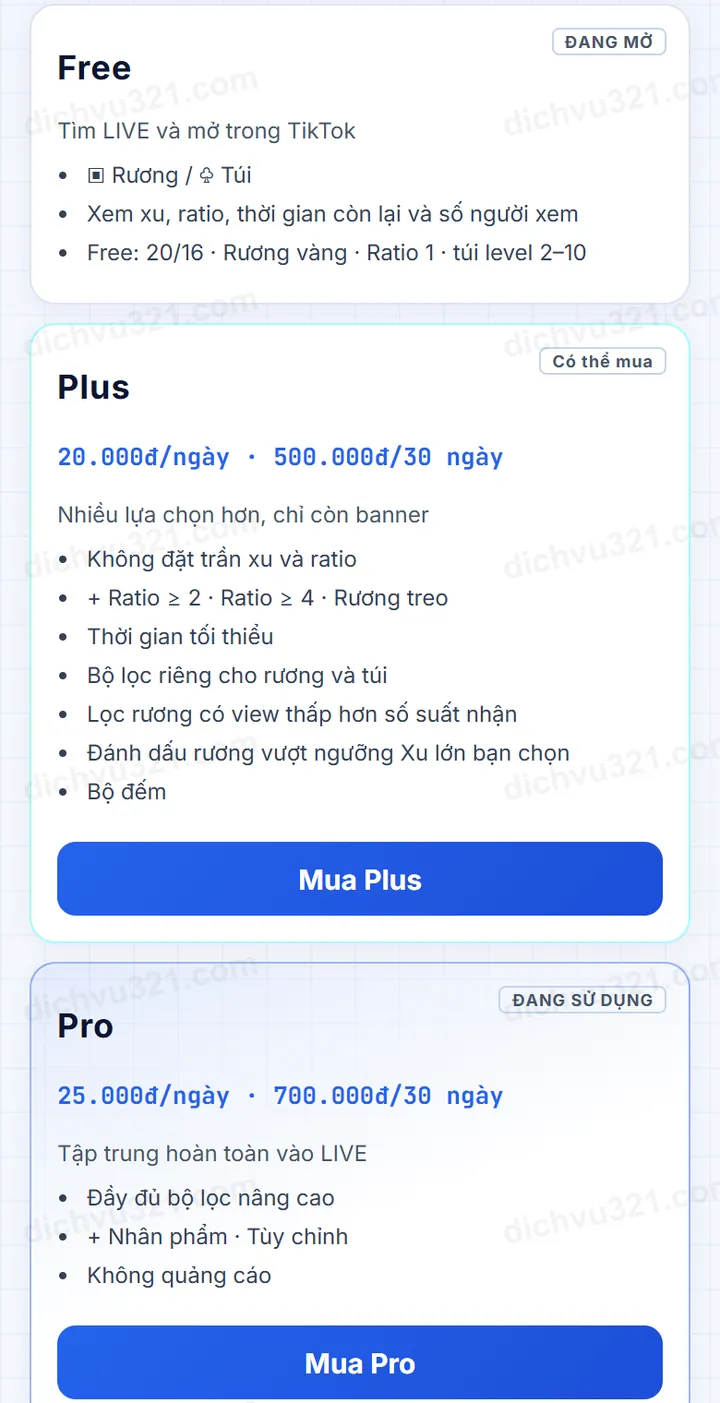
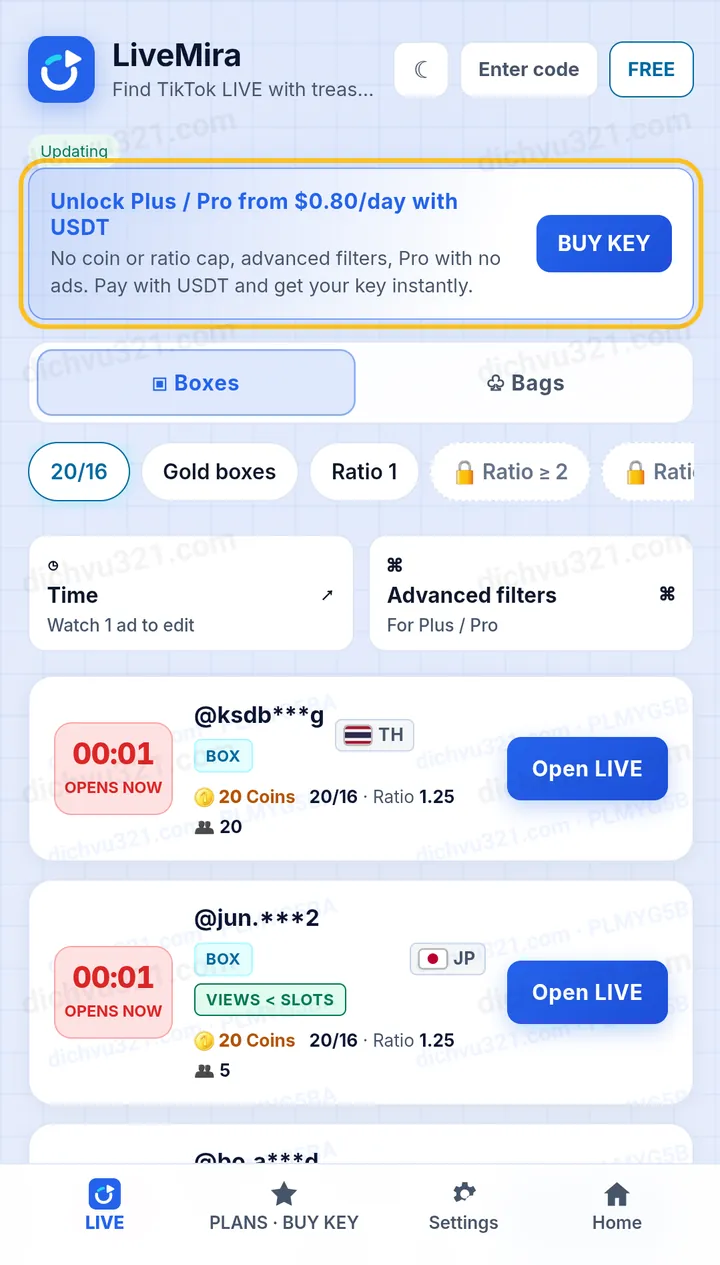
Open the LIVE page, tap the PLANS tab, select Plus or Pro, then choose a duration: 1, 7, 30 or 60 days. You can also type any amount. The “You will receive” line shows how much time will be added to your account.
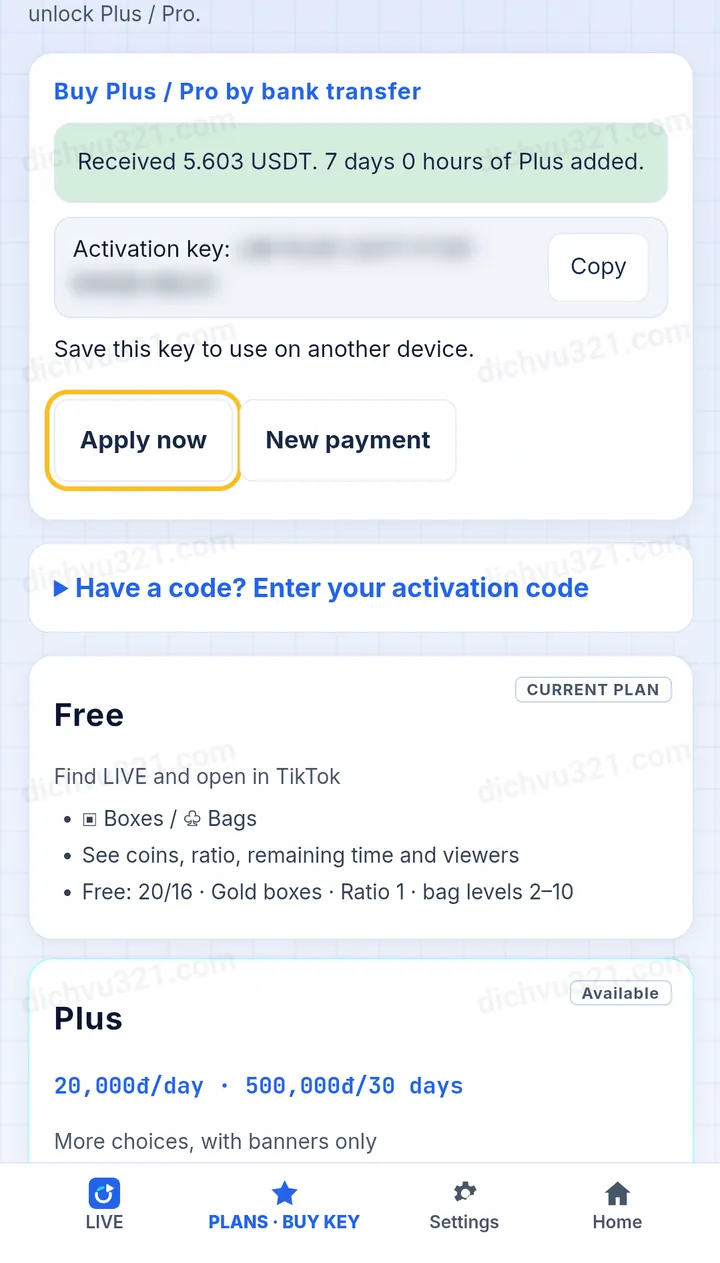
Select MB bank transfer and tap Create payment code. Transfer the exact amount shown, including the odd digits at the end, and leave the default transfer note. After you transfer, tap “I have transferred”: the key usually appears within a few seconds, and “Apply now” turns the plan on for this device.
The amount is how the system recognises your payment. If you round the amount or send less, the payment may not be recorded. In that case, contact support and include a photo of your receipt.
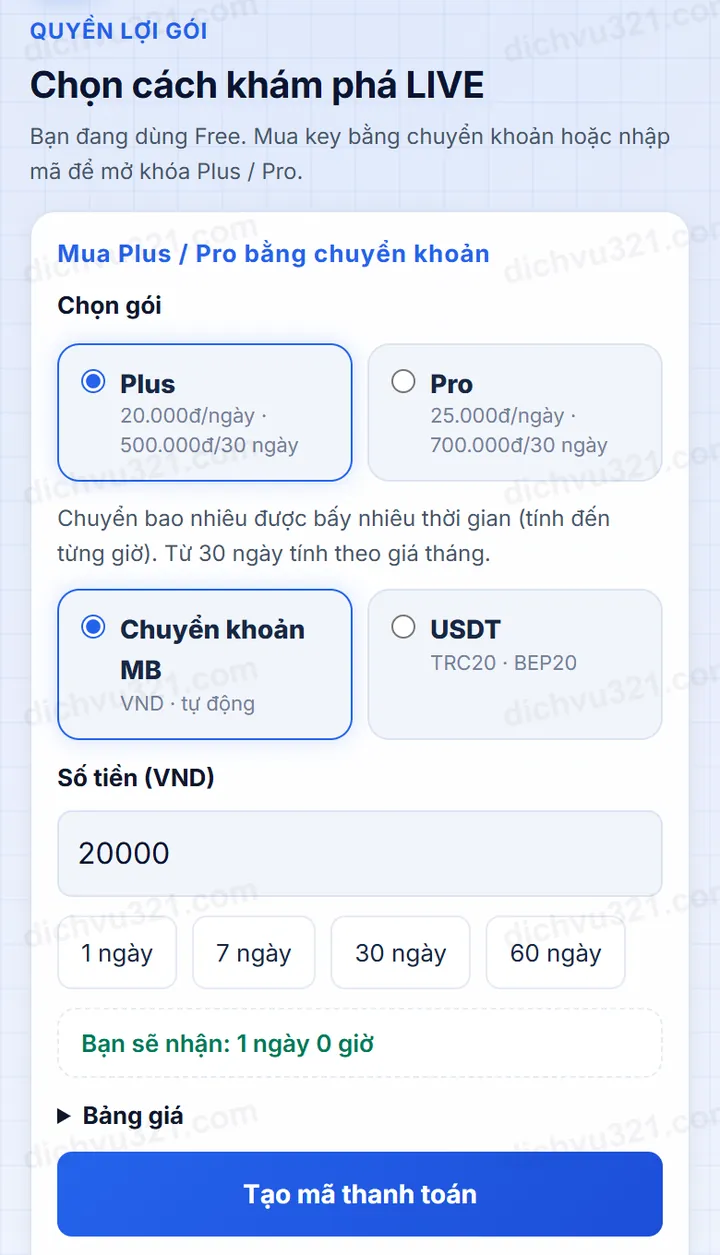
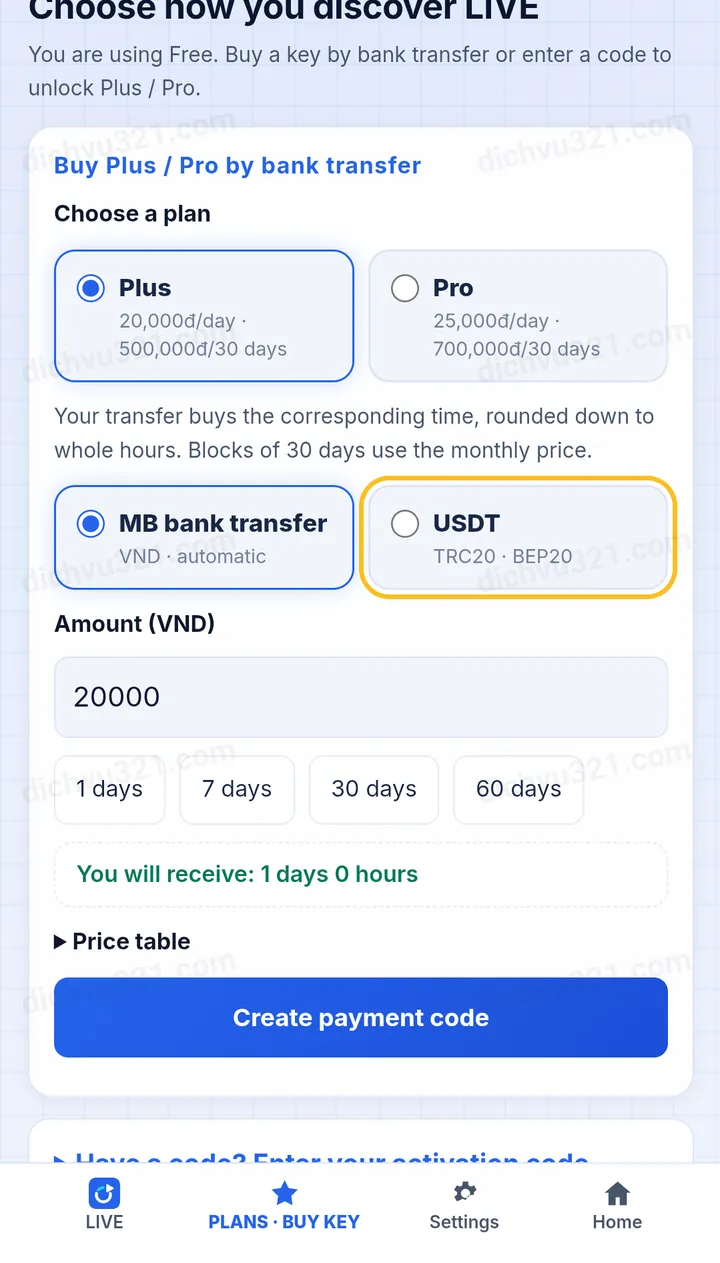
Tap BUY KEY on the LIVE page, pick Plus or Pro, then choose USDT as the payment method.
Pick the network that matches your wallet (BEP20 or TRC20), choose the number of days, and tap “Create USDT payment”. The price line shows how much USDT you will pay.
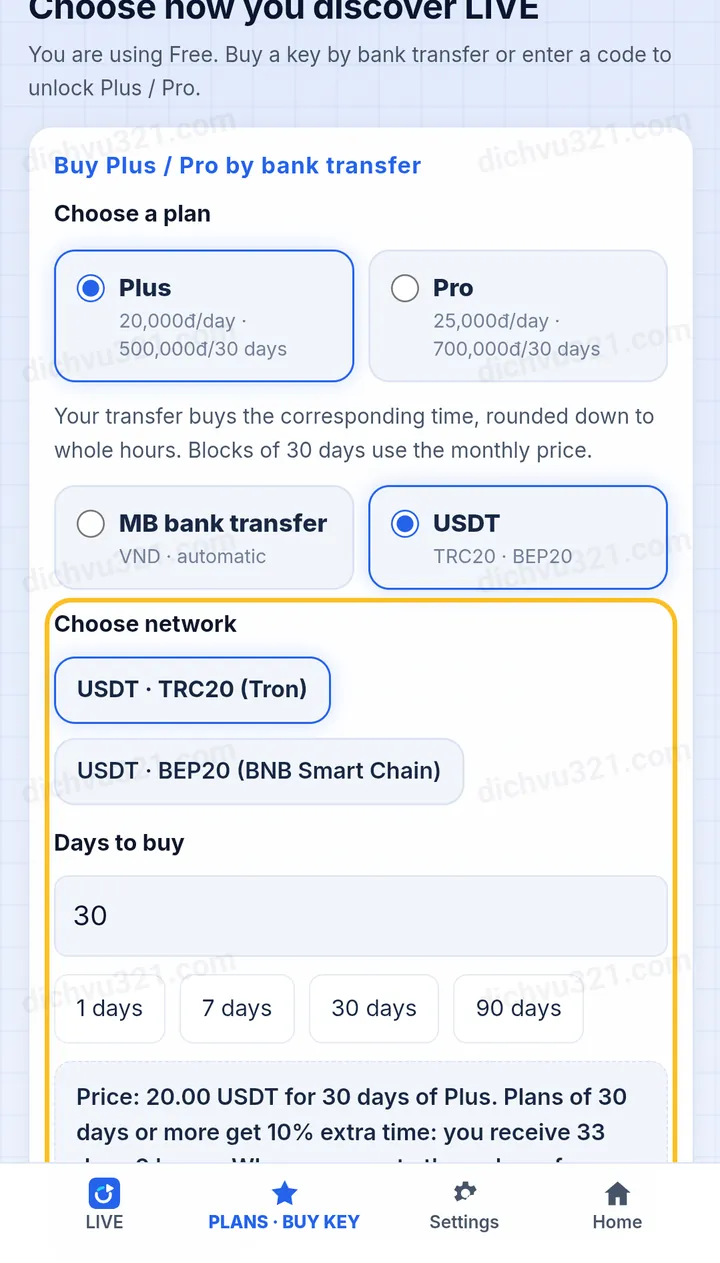
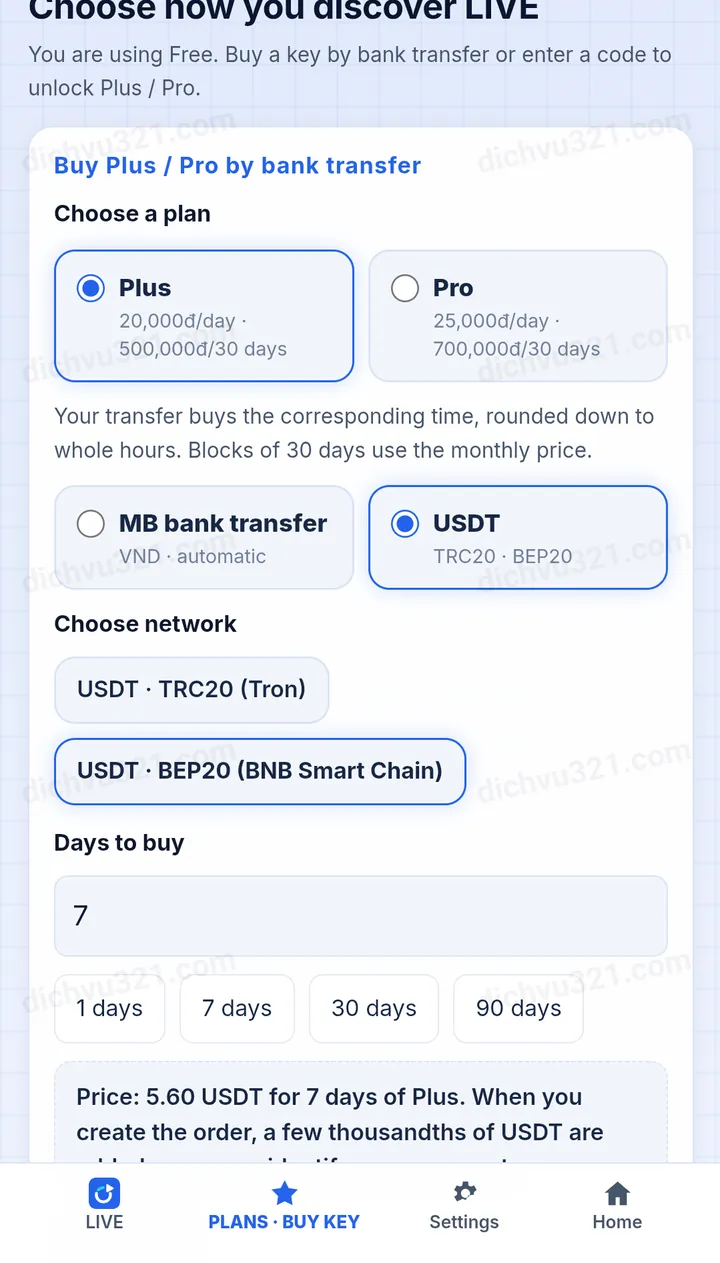
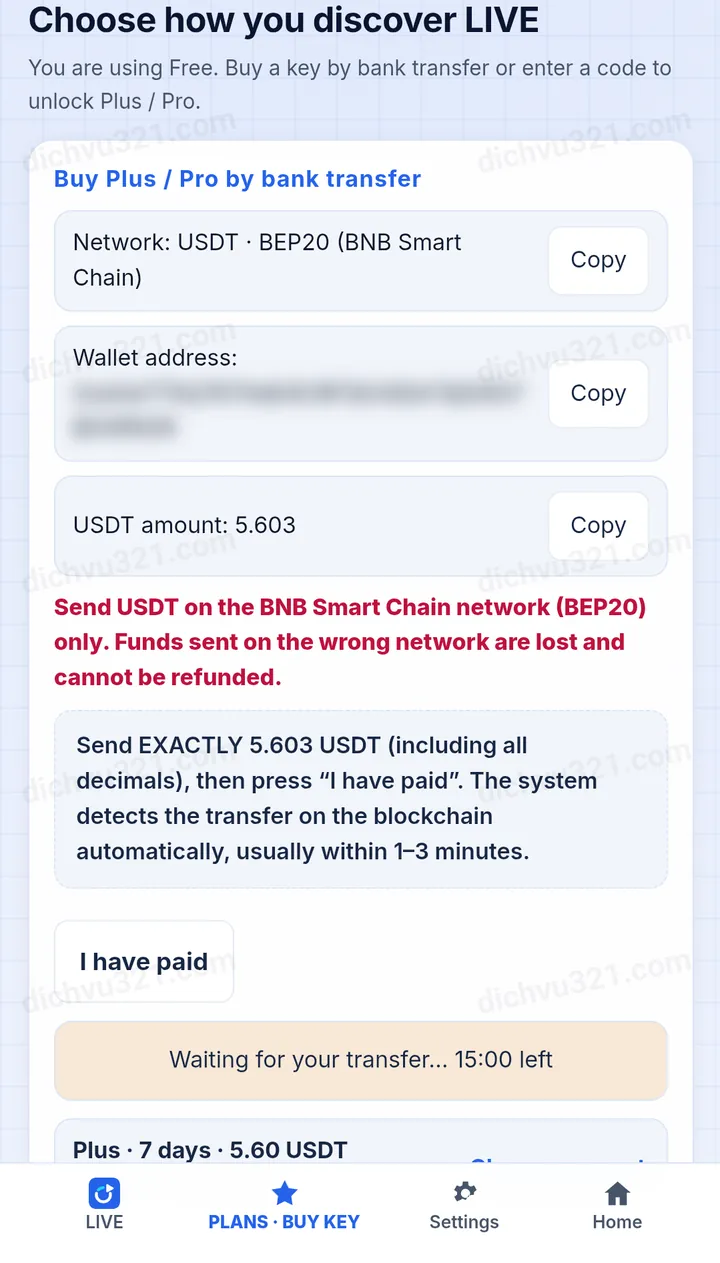
The order shows the network, the wallet address and the exact USDT amount, including the last decimals that identify your payment. Send exactly that amount on the network shown. Sending on the wrong network can lose your funds.
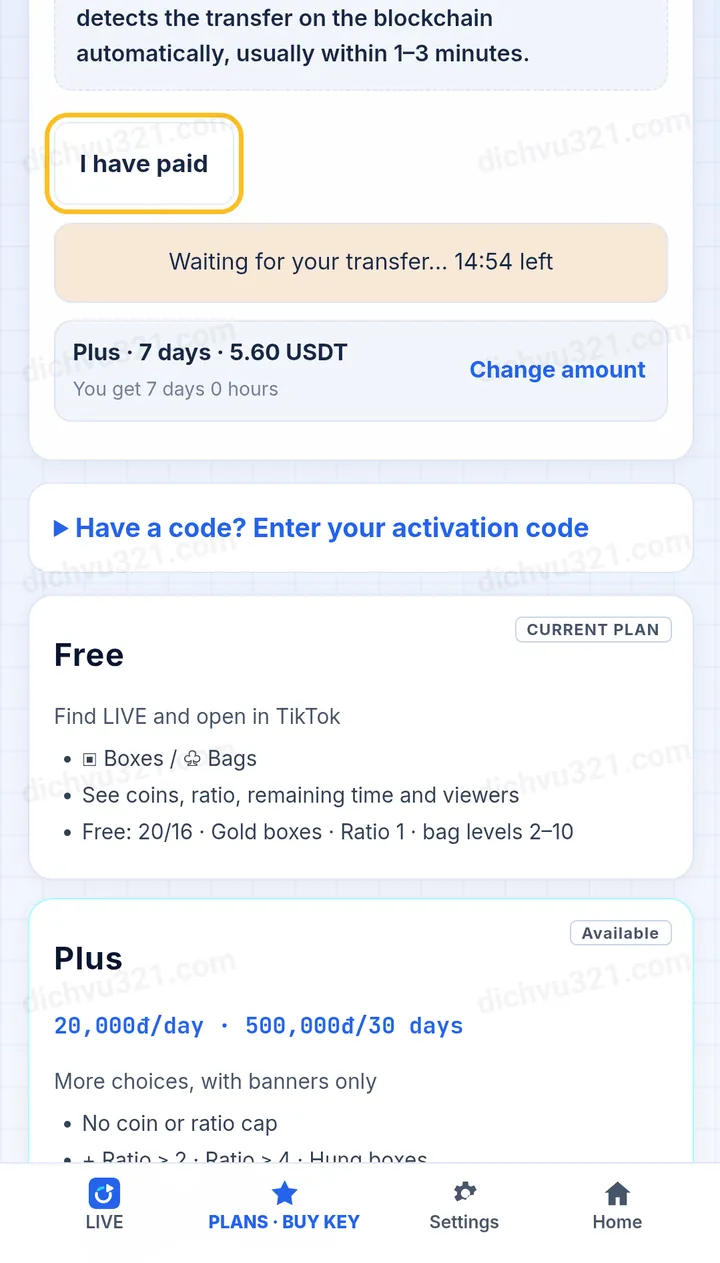
After sending, tap “I have paid”. The system watches the blockchain and usually confirms within 1–3 minutes. Then your activation key appears: save it, and tap “Apply now” to turn the plan on for this device.
The LIVE page includes a scratch card option, but it may not be open at all times. If it is unavailable, pay by MB bank transfer or USDT instead.
If you have paid but still do not see a code after a few minutes, avoid creating many orders in a row. Check the amount, the transfer note and the time you sent the payment, then contact support with your order details.
If you bought on this device, “Apply now” turns the plan on straight away; you do not need to type the code. Use “Have a code? Enter your activation code” only on a different device or browser: paste the code and tap Activate. The status changes from Free to your plan and shows the time left.
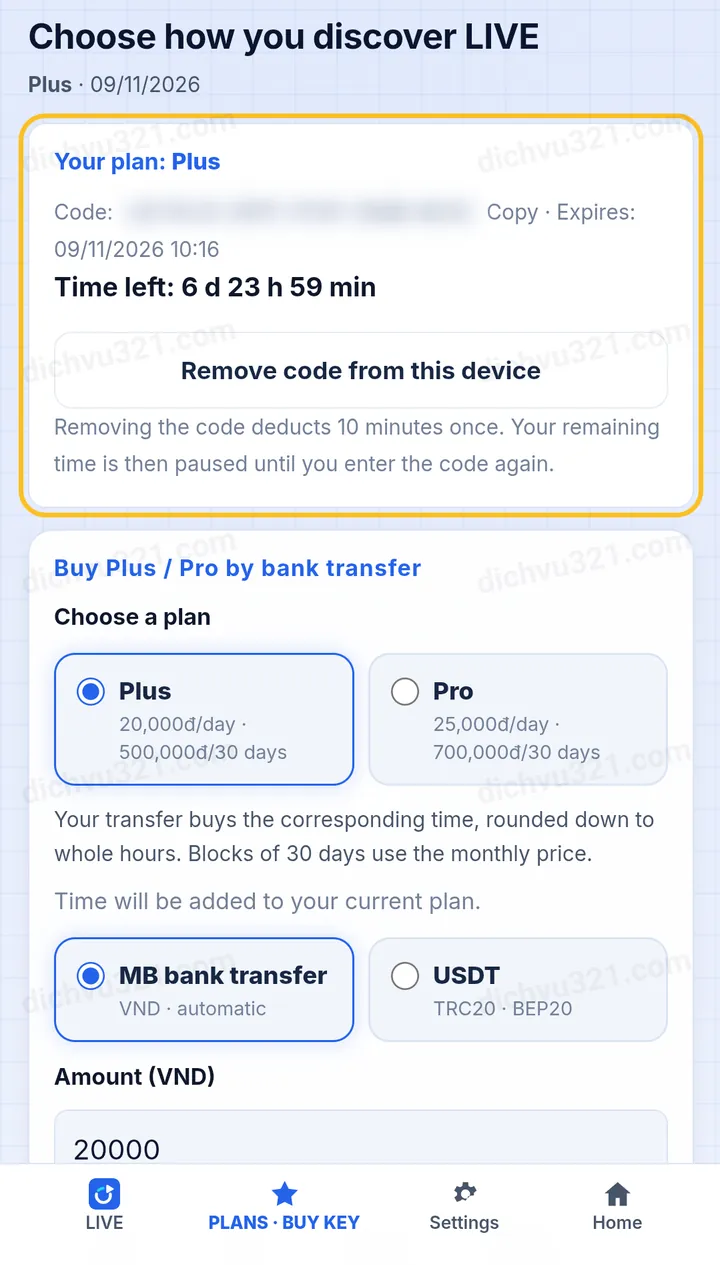
Each key is tied to one device or browser. To use it on another device, tap “Remove code from this device” on the old one first, then enter the code on the new device. The website plans are separate from the Android app, so buying or entering a key on the website does not unlock the app.
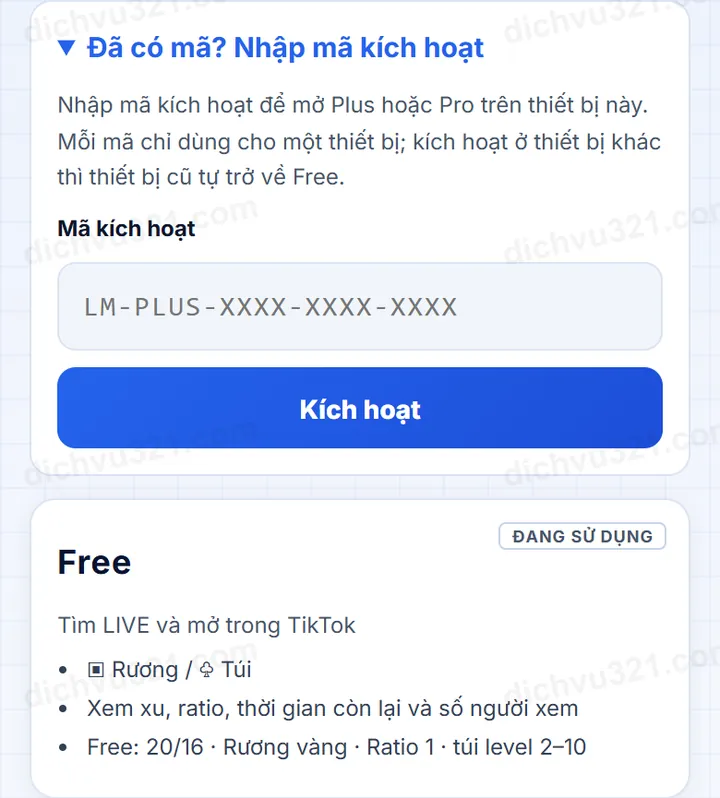
The most common problem is entering the wrong code. When you paste a code, check that there are no extra spaces at the start or end and that you copied the full string. If the code is wrong, the system shows a general error, and you can try again after copying the code from the original source.
A second case is a code that is still linked to another device. Each key works on one device at a time, so tap “Remove code from this device” on the old device, then “Enter code” on the new one; each removal deducts 10 minutes and the remaining time is kept. If you no longer have the old device, contact support to have the code removed by an admin. Do not keep retrying activation, because repeated attempts will not make the code work on a new device.
If you change your phone or computer, switch browsers or clear browser data, access on the old device may no longer apply. In that case, prepare your order details and a short description of what happened, then contact support. Keeping a photo of your receipt makes the check much faster.
LiveMira is an independent service and is not owned, sponsored, endorsed by or affiliated with TikTok or Telegram.
No. You only need to make a bank transfer or USDT payment and enter the activation code on the website. Never share your TikTok password or cookies with anyone.
If you want flexible filters and do not mind banner ads, choose Plus. If you want the full set of advanced filters with just one small banner, choose Pro.
No. Each key is tied to one device or browser. To switch devices, remove the code on the old one first, then enter it on the new one.
The system usually confirms within seconds and checks for up to 5 minutes. If there is still no key after 5 minutes, do not create a new order; check the amount, prepare a photo of your receipt and contact support.
The usable time follows the plan you bought. Check the status line in the PLANS tab to see how much time remains.
Contact support with your order details and a description of the situation. Each case is reviewed separately based on the transaction information.
Choose a room in the Free list, then check the event in TikTok before participating.