Enter, Remove, and Transfer LiveMira Key to Another Device
Each Plus or Pro key can only be used on one device or browser at a time. This guide walks you through entering your code, checking remaining time, removing it from an old device, and transferring it to a new one without losing paid time.
✓ Practical steps✓ Clear data definitions✓ You participate in TikTok
01
Entering Your Activation Code
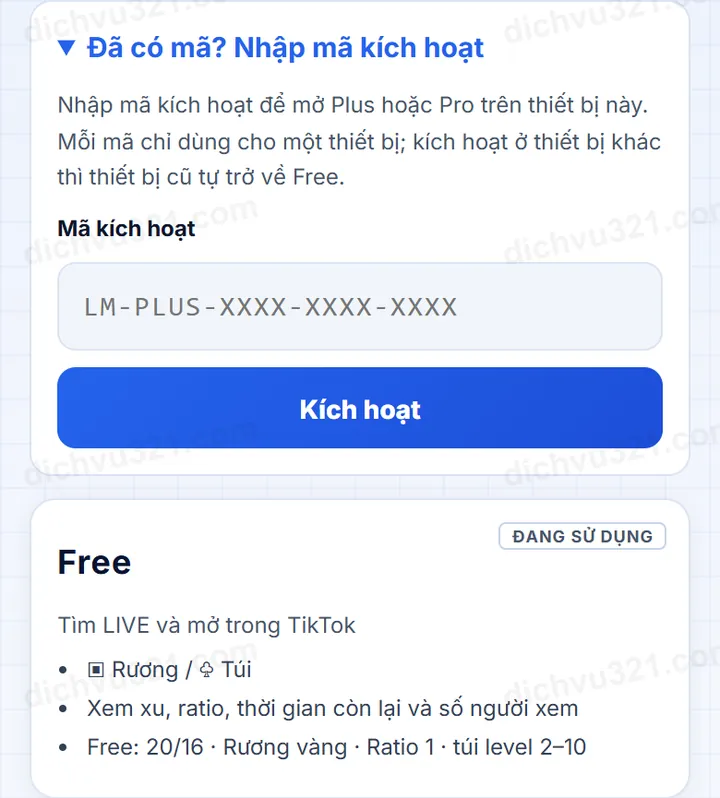
Open the LIVE page, click PLANS · BUY KEY, expand “Have a code? Enter your activation code”, paste your key (e.g. LM-PLUS-… or LM-PRO-…), and click “Activate”. The code is case-insensitive; trailing and extra spaces are ignored.
If you just bought via bank transfer or USDT in that same browser, clicking “Apply now” on the payment screen is enough; no re-entry needed.
The “Have a code? Enter your activation code” section in the PLANS · BUY KEY tab.
02
Viewing Your Current Plan and Remaining Time
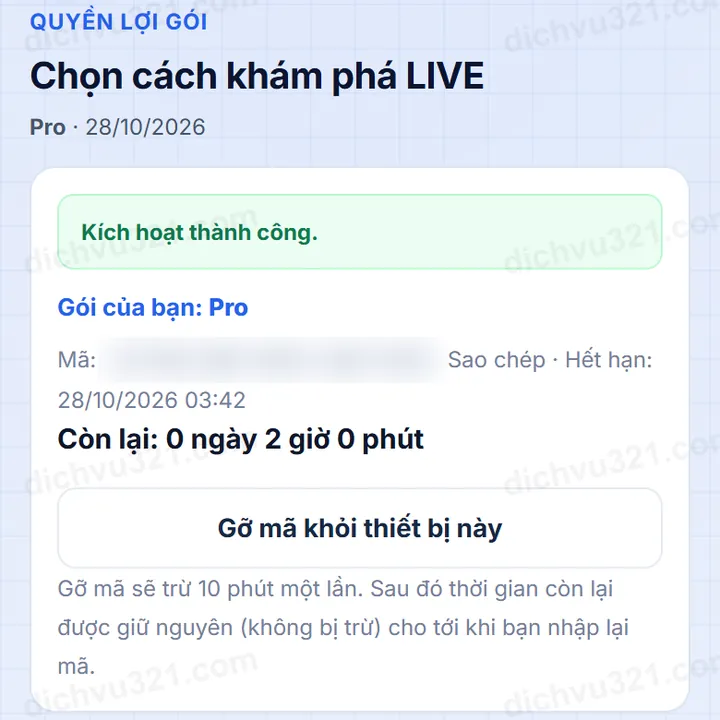
Upon successful activation, the PLANS · BUY KEY tab shows “Your plan”, your partially masked code with a “Copy” button, expiration date, and “Remaining: … days … hours … minutes”. The badge in the top corner switches from FREE to PLUS or PRO.
Copy and store your code securely (notes app, password manager). You will need this code when switching devices or clearing browser data.
After activation: active plan, expiration date, remaining time, and the remove button (code is partially masked in screenshot).
03
Transferring Key to Another Device or Browser
Step 1: On your old device, open the PLANS · BUY KEY tab and click “Remove code from this device”. Each removal deducts 10 minutes; remaining time is then frozen and will not tick down until you re-enter the code.
Step 2: On your new device, enter the code as guided above. Time resumes running from the remaining balance.
If you enter the code on a new device before removing it from the old one, the system reports the code is in use on another device and will not activate. This security measure prevents unauthorized takeovers.
04
Lost Old Device or Cleared Browser Data
If you can no longer access your old device (lost device, reinstalled OS, cleared browser storage), you cannot self-remove the code. Contact support via Zalo or Telegram, provide your code (or purchase receipt screenshot) to release it from the old device; remaining time is preserved.
Once released, enter the code on your new device as usual.
05
Important Tips to Avoid Losing Time
Never share your code: anyone with the code can activate it on their device if it is currently unassigned.
Avoid repeatedly removing and re-entering: each removal deducts 10 minutes.
Incognito mode discards data when windows close; always use normal browser mode for paid keys.
Website plans are completely independent of the Android app.
Expired codes cannot be reactivated; purchase a renewal in the PLANS · BUY KEY tab.
LiveMira is an independent service and is not owned, sponsored, endorsed by or affiliated with TikTok or Telegram.
Can one key be used on two devices at the same time?
No. Each key is tied to only one device or browser at any given moment.
Does removing a code consume time?
Each removal deducts 10 minutes. The remaining time is preserved until you re-enter the code.
What should I do if the system says my code is in use on another device?
Remove the code on the old device first. If you no longer have access to the old device, contact support to release it.
What if I forget my code?
The code is displayed (partially masked, with a “Copy” button) in the PLANS · BUY KEY tab on your active device. If you lost that device, contact support with your receipt.
Do I need to transfer the key when switching browsers on the same phone?
Yes. Each browser is treated as an independent device.
What should I do if the entered code shows as invalid?
Verify the code has all characters, is not the masked version (with asterisks *), is not expired, and has not been blocked.
LIVEMIRA LIVE
Ready to explore TikTok LIVE?
Choose a room in the Free list, then check the event in TikTok before participating.