TikTok LIVE link not opening: check what actually failed
A failed app handoff, an ended LIVE and a visible event you cannot join are different problems. Identify what happens after you press “Open LIVE”, then use the relevant checks before selecting another room.
✓ Practical steps✓ Clear data definitions✓ You participate in TikTok
01
Observe the result before trying again
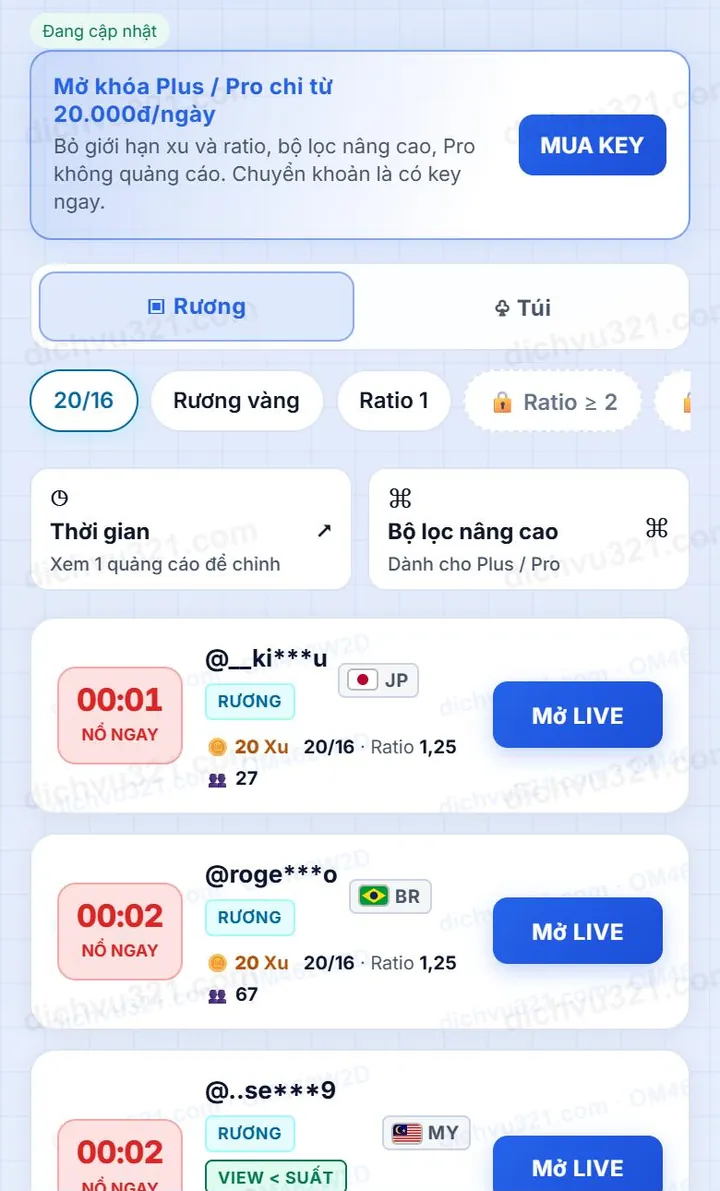
In the LIVE page, use “Open LIVE” for your chosen room. After pressing it, note whether a browser prompt appears, TikTok launches, or the page says the event has expired. Repeatedly tapping does not explain the cause and can leave you following a row whose remaining time has already elapsed.
Free plan: locked tabs and the Advanced filters panel labeled “For Plus / Pro”.
02
If TikTok does not launch
Check that the official TikTok app is installed and opens normally on the same device. Return to LiveMira in a browser and watch for a request to open the application. If you want to enter the room, allow that request. A browser or an embedded browser may handle app-opening links differently.
If you started inside another application's browser, try the public LIVE page in your device's regular browser and choose a fresh room. On a phone, “Open LIVE” hands off to the TikTok app; on a computer, it opens the room on tiktok.com. Do not install an unofficial claiming tool to resolve the problem.
03
If TikTok opens but the event is missing
Compare the countdown you saw before leaving with the time spent switching applications. The event may have finished, changed or become unavailable before you arrived. A detection is not a reservation, and an old screenshot cannot prove that the same event remains active now.
Return to the list, check its update status and choose a room with more remaining time. If you can view the creator's LIVE but no longer see the box or bag, report that specific result. The missing-event checklist helps distinguish list visibility from the event inside TikTok.
04
If the event is visible but you cannot participate
Read the exact message and conditions TikTok displays. Availability can vary between accounts, locations and events. A bag level in LiveMira is not confirmation that your account qualifies, and a favourable ratio does not remove any requirement shown in the room.
LiveMira cannot bypass a region, level or account restriction. Do not change several account settings based only on a guess about the level label. Keep the event's message with your report and use the bag level explanation to separate the listed field from personal eligibility.
05
Check basic app and connection behaviour
If TikTok itself will not load ordinary content, investigate that problem before using another LIVE row. Check your connection and whether the app is current. Use TikTok's own help for persistent app problems. This guide does not require clearing account data, changing region or sharing credentials with a third party.
The LiveMira app is available on Google Play. A screenshot does not verify every device or TikTok version.
06
Send a report that identifies the failure
Record the time, device, browser or LiveMira app version, TikTok version, previous countdown and whether TikTok opened. A sequence such as 'prompt appeared, TikTok launched, bag absent' describes the failure more clearly than saying the link is broken.
Remove private account details from screenshots and never send passwords, verification codes or cookies. Use LiveMira service information for contact details. If the failure is inside TikTok, follow TikTok's Report a problem route; include the app message rather than assuming LiveMira can alter TikTok's decision.