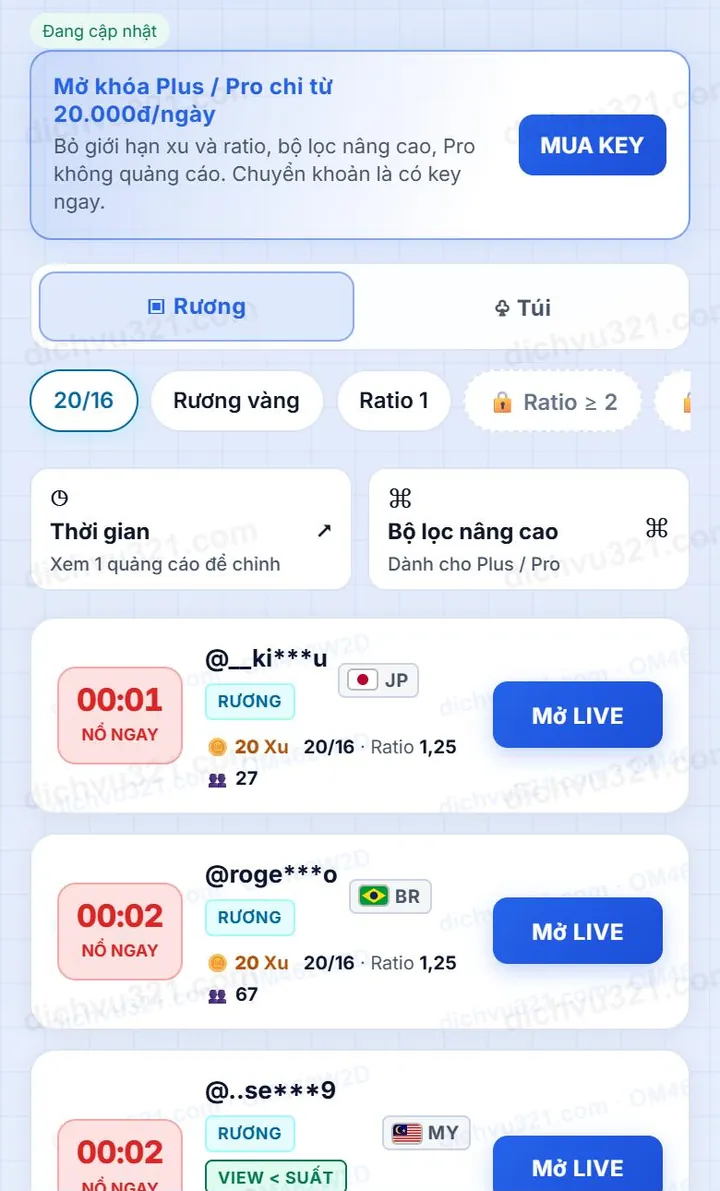
How to filter TikTok Goody Bag listings in LiveMira
Select bags, choose a bag tab your plan includes and pick a LIVE that leaves you enough time to inspect it. Free has the “Level 2–10” tab; Plus adds “Level 1” and “Level 0”; Pro adds a “Custom” bag tab. A filter changes the list you see; it does not change TikTok's participation conditions.
✓ Practical steps✓ Clear data definitions✓ You participate in TikTok
01
Step 1: select the bag list
Open the LIVE list, in your selected language, and select bags with the bag button at the top of the list; the box button switches back to treasure boxes. This choice keeps box rows out of your bag view and makes it easier to compare the same event type.
The resulting list remains ordered by opening time. It does not move a bag to the top because it has a higher level, more Coins or a larger ratio. If you need more preparation time, inspect a later-opening row rather than assuming the first result is always the most suitable.
02
Step 2: choose a bag tab for your plan
Free has the bag tab “Level 2–10”. Plus adds “Level 1” and “Level 0”. Pro adds a “Custom” bag tab that uses your “Advanced filters”. A locked tab needs a higher plan. Free no longer has a 100-Coin or ratio-2 cap.
Bag rows show Coins, Ratio, View and the participant count. For example, a bag with no winner slots, 90 Coins and 45 participants has a ratio of 2. A level-3 bag belongs in the Free “Level 2–10” tab whatever its Coins or ratio; a level-1 bag is in the Plus “Level 1” tab.
Free plan: locked tabs and the Advanced filters panel labeled “For Plus / Pro”.
03
Step 3: set the Time filter
“Time” shows only rooms with at least N seconds left, with quick choices of 0, 30, 60 and 120 seconds. Plus and Pro edit it directly, and the setting is saved in the browser. Free would need a rewarded ad for each change, and rewarded ads are not available on the website yet, so Free cannot edit it on the web for now.
Treat ten seconds and ninety seconds differently if your device needs time to switch apps. On Free, read each countdown and choose a bag with enough time manually.
04
Step 4: use Advanced filters for bags (Plus, Pro)
Open “Advanced filters” while bags are selected. Bag filters are saved in this browser, separately from box filters. Plus has “Minimum coins”. Pro adds “Minimum ratio” and bag levels 0–10, used together with the “Custom” bag tab. Free has no advanced filters and cannot set its own Coins, ratio or level.
05
Change one selection at a time when diagnosing an empty list
If the bag view shows nothing, switch to boxes and check whether boxes appear. Boxes present with no bags suggests a different situation from a page reporting a connection problem. It does not establish the cause by itself, but it helps you describe the symptom without changing several assumptions at once.
Read the update status and check that “Pause updates” is off; press “Refresh ↻” if needed. A level-1 or level-0 bag is outside the Free “Level 2–10” tab, and a high “Time” setting hides bags that open soon. The empty-list checklist helps distinguish no matches from an interrupted update.
06
Open the LIVE and verify the event
Press “Open LIVE”. On a phone it opens the room in the TikTok app (allow the browser to open TikTok if prompted); on a computer it opens the room on tiktok.com. Check the bag's conditions and participate manually. More participants may have joined or the event may have ended. A matched filter is not a reward reservation, and the website does not claim bags for you.